RXV81 in Ad Hoc Peripheral Mode
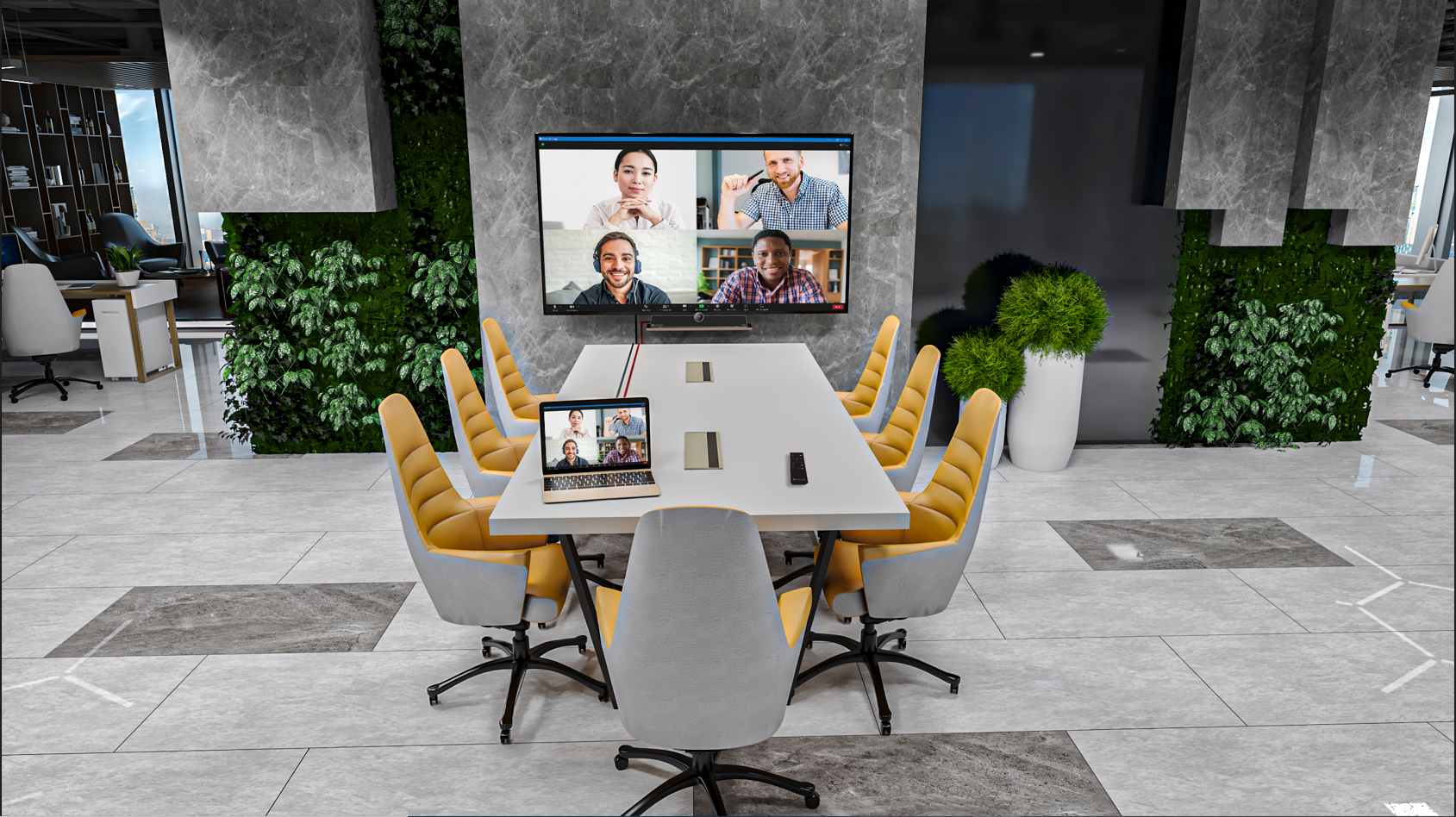
In addition to standalone mode, RXV81 can be used in ad hoc peripheral mode. This mode enables seamless integration of RXV81 with a PC or laptop by utilizing RXV81's audio and camera capabilities as primary audio and camera sources for the PC or laptop.
In this mode, you can connect RXV81 to a BYOD (Bring Your Own Device) PC or laptop running a UC client. The BYOD displays meeting video and content and meetings are controlled via the BYOD (join, accept, manage participants). Audio and video, such as camera ePTZ and mic mute, can be controlled via the UC client.
During a video call or meeting, when using the device with the ad hoc USB A/V peripheral , the RCU can be used to:
| ■ | Control the volume |
| ■ | Mute the mic |
| ■ | Turn the camera on or off |
See the RXV81 MTR on Android Video Collaboration Bar with RX-PAD or RCU Quick Guide for detailed information on cabling RXV81.
| ➢ | To use RXV81 in ad hoc peripheral mode: |
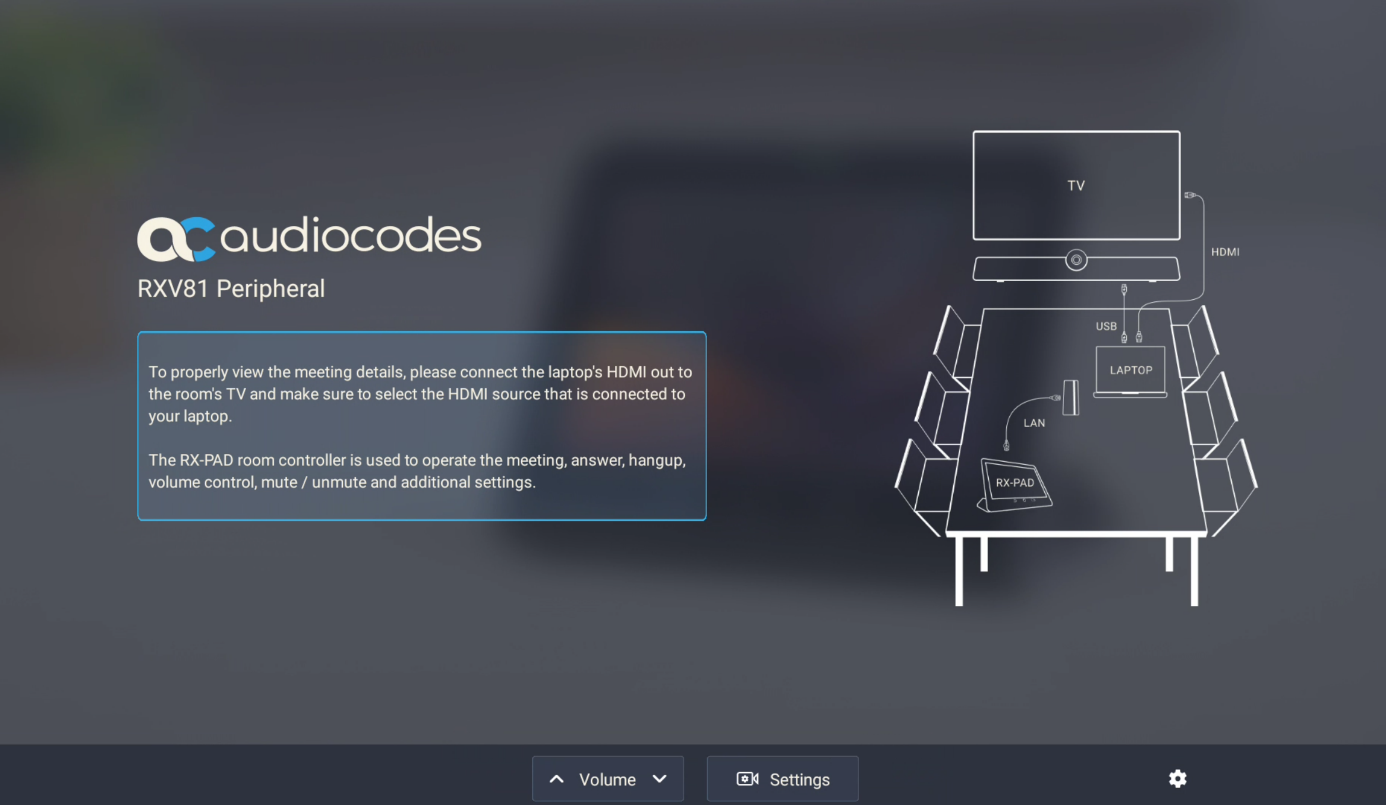
| 1. | Connect the device’s  USB Type C port to a PC or laptop running a UC client; the device automatically moves to ad hoc peripheral mode, and the RX-PAD displays the following: USB Type C port to a PC or laptop running a UC client; the device automatically moves to ad hoc peripheral mode, and the RX-PAD displays the following: |
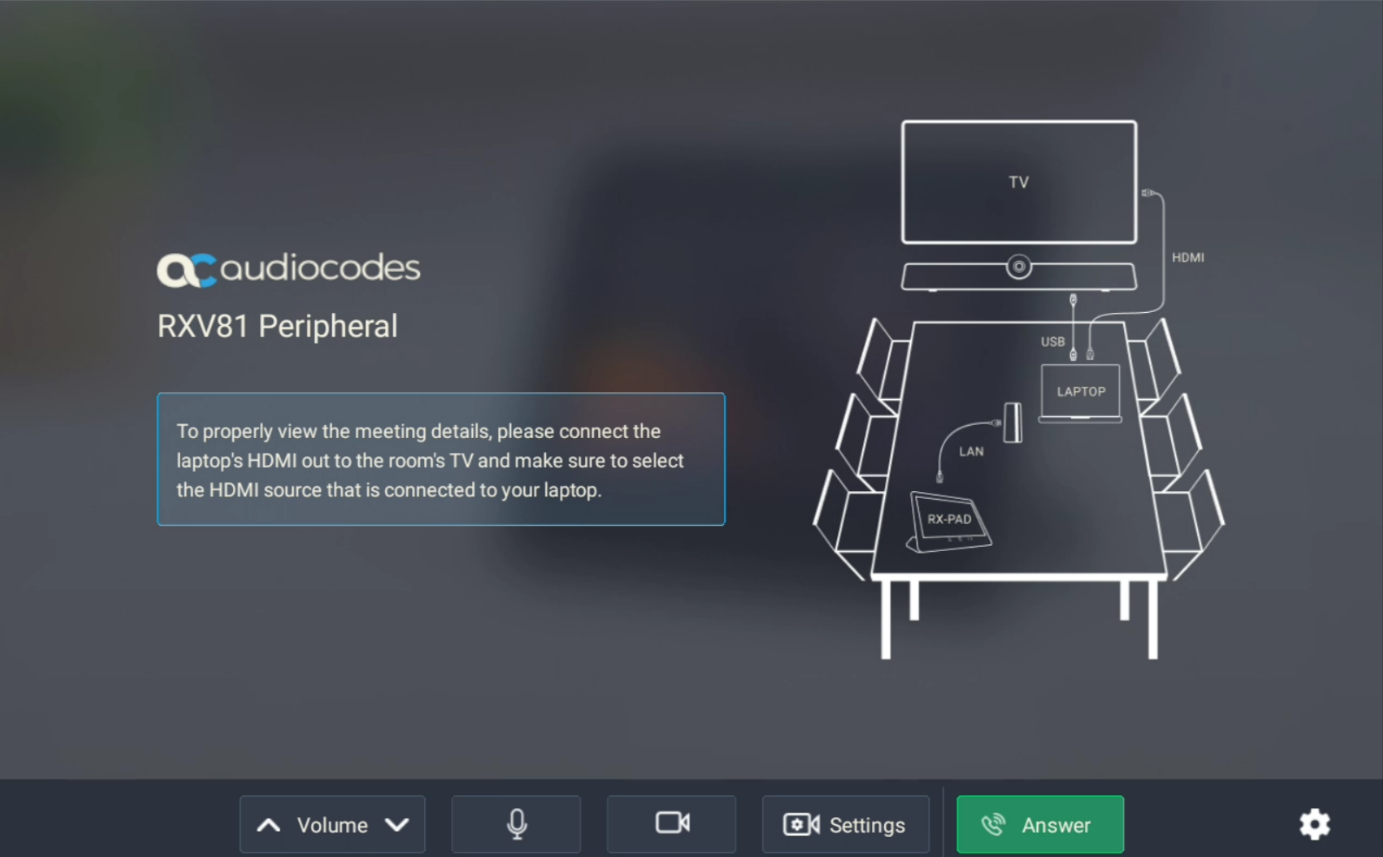
| 2. | When a call comes in, view the incoming call’s functions on the RX-PAD, for example, ANSWER, as shown in the following figure. |
| 3. | View the ad hoc peripheral mode displayed on RXV81 bundled with the Remote Controller Unit (RCU) as shown in the following figure. |
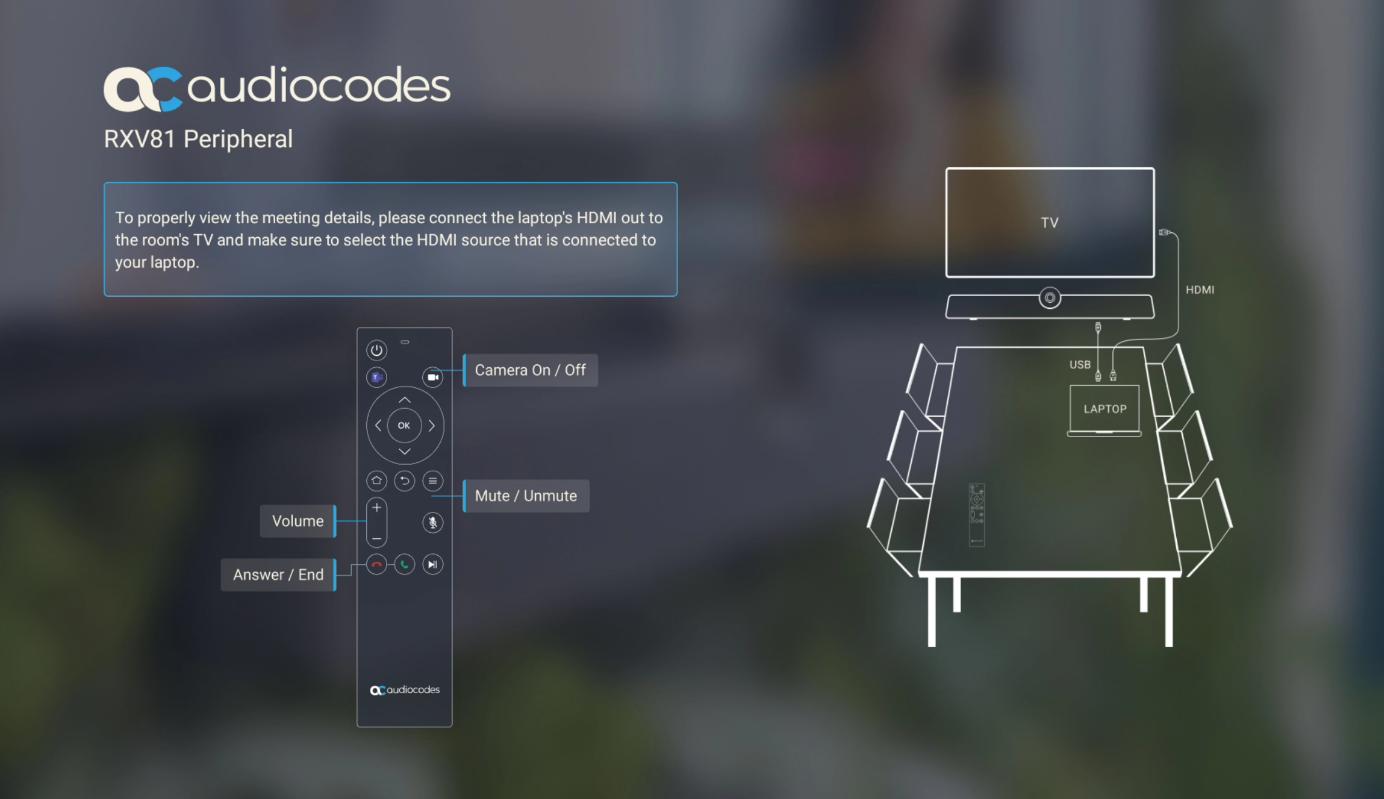
When the device is in ad hoc peripheral mode, it automatically detects the mode when the user connects a USB cable from their BYOD compute, and pops up this message to the user:
In addition to the USB cable already connected to your laptop, please connect your laptop to the TV using the HDMI cable to properly view meeting details and content sharing.
On your TV, make sure to select the HDMI source that is connected to your laptop.
Note that you can still use your RXV81 RCU to increase or decrease volume, mute or unmute audio, and switch the camera on or off.
In peripheral mode, the BYOD displays meeting video and content. Meetings actions (join, accept, manage participants) are controlled via the BYOD. Audio/video functions can be controlled via the UC client (camera ePTZ, mic mute) or the RCU (camera on/off, mute, volume).